Critical CSS is the practice of inlining only the styles needed to paint the visible portion of a page, then loading the full stylesheet asynchronously. Done right, first paint arrives earlier and LCP improves. Done wrong, it breaks layouts in ways users notice before any metric does. Here is the setup we actually ship.
When it is worth doing
Critical CSS helps most when your stylesheet is large (70 KB+) and render-blocking, and your pages share a simple above-the-fold structure. If your theme ships 40 KB and already splits styles per template, skip it — the complexity buys nothing. Check your baseline with the diagnostic walkthrough first.
The setup in four steps
- Extract critical CSS per template type — homepage, post, archive, WooCommerce pages have different above-the-fold needs. One global critical block is the most common mistake.
- Inline it in the head via your theme’s hooks or an optimization plugin. Keep it under ~20 KB; beyond that the inline HTML grows and cache efficiency drops.
- Load the full stylesheet non-blocking — the standard
media="print" onloadswap orrel="preload"pattern with a noscript fallback. - Test on the five page types you extracted for, with cache both cold and warm. Layout shifts (CLS!) are the failure mode — watch the unstyled flash duration.
The pitfalls we hit so you do not
- Cart/checkout pages styled wrong. WooCommerce pages load plugin CSS that the critical extraction missed. Exclude shop pages from the inline strategy initially.
- Stale critical CSS after theme updates. Regenerate after every theme update — put it on the update checklist.
- Plugin CSS unloaded too aggressively. Some optimization plugins defer everything including form styles. Whitelist plugin CSS you actually need.
- CLS regressions. If inline CSS differs from final CSS on visible structure, you trade LCP for layout shift. Measure both.
Measured outcome
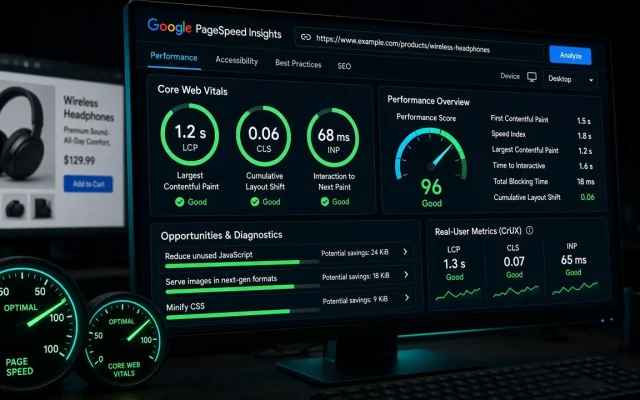
On three client sites with 70–140 KB stylesheets, proper per-template critical CSS improved first-paint by 0.3–0.5s and LCP by 0.15–0.3s. Solid — but smaller than the wins from font fixes and caching, which is why it sits late in our sequence.
Tools that do the extraction
WP Rocket, FlyingPress, and similar optimization plugins automate per-template extraction. For a manual approach, open-source tools generate critical CSS from rendered pages. Whatever the tool: regenerate on theme updates, exclude shop flows until verified, and keep the free audit numbers as your before/after reference.
The minimal styles needed to paint above-the-fold content, inlined in the head so first paint does not wait for the full stylesheet, which loads asynchronously afterwards. It improves FCP directly and LCP modestly (0.15–0.3s in our tests). Watch CLS — mismatched inline CSS can create layout shift that costs you the gain. WooCommerce cart, checkout, and account pages initially — their plugin CSS is easy to miss in extraction. Verify templates one by one before including them. After every theme update and any layout change to above-the-fold content. Stale critical CSS is the main cause of subtle layout bugs.What is critical CSS in WordPress?
Does critical CSS improve Core Web Vitals?
Which pages should skip critical CSS?
How often should critical CSS be regenerated?