The white screen of death — a blank browser and a blank admin — is WordPress responding to a PHP fatal error with nothing to render. It looks catastrophic. In practice, the cause is almost always one plugin, one theme, or one memory limit, and it is findable in ten minutes with the right sequence.
Before you start: do not reinstall WordPress and do not restore a backup yet — both destroy the evidence you need. You only need three things: SFTP or file-manager access to your host, your latest backup location written down (for later, not now), and 20 minutes. If the white screen affects only wp-admin or only the front end, note which — it changes the first step. If you cannot get file access at all, skip to your host’s support line first; that is a hosting ticket, not a debugging session.
Step 0: Confirm what you are actually seeing
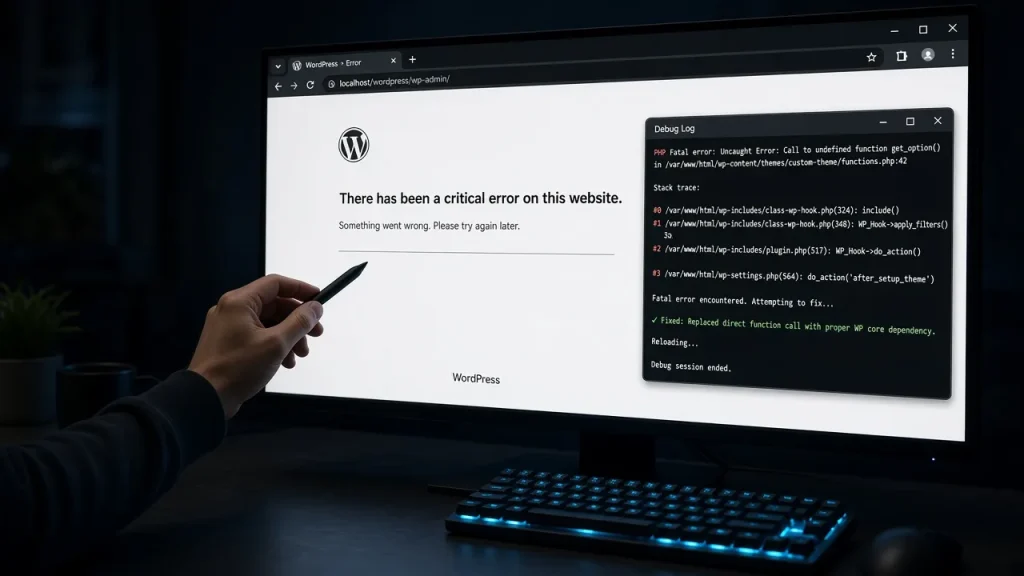
A truly blank page means a fatal error before any output. If you see “There has been a critical error on this website”, WordPress caught it — follow our critical error guide instead, which uses recovery mode. Blank-means-blank needs manual work.
Step 1: Make the error visible
Edit wp-config.php above the /* That's all… */ line:
define( 'WP_DEBUG', true );
define( 'WP_DEBUG_LOG', true );
define( 'WP_DEBUG_DISPLAY', true ); // temporarily
Reload the white page. One of two things happens:
- You see the fatal error text — note the file path. A path inside
wp-content/plugins/…names the culprit directly. - Still blank — check
wp-content/debug.logand your host’s PHP error log (often in the hosting panel). The last entries before the white page are the story.
Step 2: The classic trio, in order of likelihood
2a. A plugin (most common)
Rename wp-content/plugins to plugins-off via FTP/file manager. If the site loads, a plugin is guilty. Rename back, then rename each plugin folder inside it one at a time — the site dies again when you stop renaming the guilty one. Bisect by renaming groups if there are many.
2b. The theme
Rename the active theme’s folder. WordPress falls back to a default theme. If the site returns, your theme broke — usually after an update or a custom-snippet edit in functions.php.
2c. Memory exhaustion
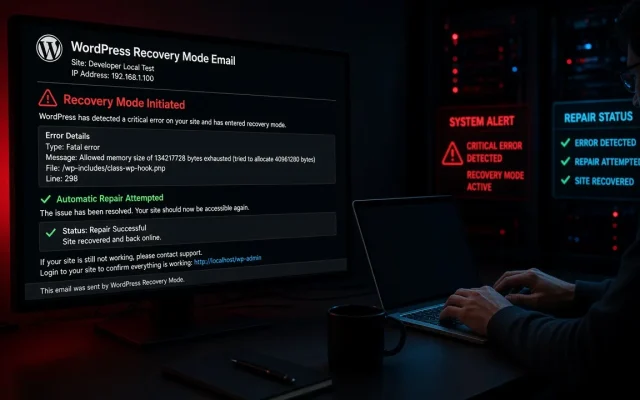
If the log shows Allowed memory size exhausted, raise the limit:
define( 'WP_MEMORY_LIMIT', '256M' );A limit that keeps climbing is a symptom, not a fix — some plugin is hoarding memory. Profile it before papering over it.
Step 3: Fix the actual cause
- Plugin caused it: update it, or roll back to the previous version from the WordPress repository. Report the conflict to the developer.
- Theme caused it: restore
functions.phpfrom backup or re-download the theme. - Unclear: copy the exact error line — searching it (or sending it to us) usually identifies a known issue in minutes.
Step 4: Turn debug display back off
Never leave WP_DEBUG_DISPLAY on in production — error text is reconnaissance material for attackers. Keep WP_DEBUG_LOG on; a written log is your best friend next time.
Prevention checklist
- Test updates on staging — our maintenance checklist makes this routine
- Keep automatic backups with verified restores
- Avoid installing three plugins for one job (see plugin conflict diagnosis)
Prefer a specialist? Our developers resolve WSOD and critical errors daily, typically within hours. Request a free audit and include the error line — we will tell you what broke before you pay anything.
Frequently asked
Most hosting panels have a file manager that reaches wp-content — that is all the manual method needs. If you cannot access files at all, restore from a host snapshot and immediately apply the debug-log steps to find the cause before updating anything again. Usually a timed update collision: a plugin auto-updated while your host updated PHP, or a license server returned bad data. The debug log timestamps will show what changed that day.Can I fix WSOD without FTP access?
Why did my site white-screen with no recent changes?