When a site goes down, the order you do things in matters more than how fast you do them. Teams that ping-pong between panels waste the golden window; teams with a triage order usually restore within it. Here is ours, minute by minute, from real incidents.
Minutes 0–5: Define “down” precisely
- What exactly do visitors see? White page (fatal error — WSOD path), 503 (capacity — 503 path), “database connection” error (DB path), or timeout (hosting/network). Each message is a shortcut to its own playbook.
- Everything or one thing? Site-wide versus one page changes the suspect list entirely.
- Check from outside: a phone on cellular data, not your office network. Cached pages in your own browser lie.
Minutes 5–10: Rule out the hosting layer
- Hosting status page / panel: provider incidents happen; five minutes waiting on their status saves an hour of wrong diagnosis.
- Panel login works? If the hosting panel itself is unreachable, it is their outage — open a ticket with timestamps.
- Does another site on the same account load? Same-server failure narrows the cause to shared infrastructure.
Minutes 10–20: Gather evidence before changing anything
This is the step everyone skips and everyone regrets. Before deactivating anything:
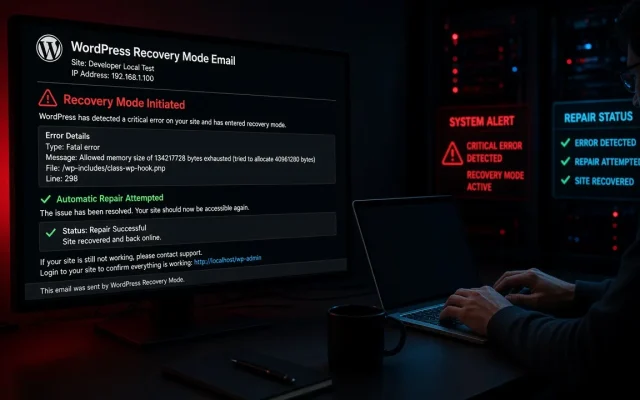
- Enable the debug log (constants in wp-config — the method and vocabulary are in the log-reading guide), reload the failing URL once, read the last 20 lines.
- Screenshot or copy the log tail. If the situation escalates to support or a restore, that artifact is the difference between a directed fix and an archaeology session.
- Note what changed recently — updates, new plugins, hosting notices. Write the timeline down; under pressure, memory invents facts.
Minutes 20–30: Choose the branch — fix or restore
- Fix branch: the log names a plugin/theme file and the cause is recent and identified. Apply the targeted fix (deactivate the culprit, revert the edit). This preserves everything since the incident.
- Restore branch: cause unknown, log ambiguous, or files compromised. Restore from the last tested backup and lose the interim data — acceptable when the cause is a mystery and revenue is bleeding. The restore drill you ran (or did not) decides how long this takes.
Communicate before you are asked
A one-line status page, a note to the team, or a banner: “we are aware and restoring” reduces inbound pressure enough to buy real working time. For B2B sites, telling the two or three biggest customers directly often matters more than any technical step.
After it is back
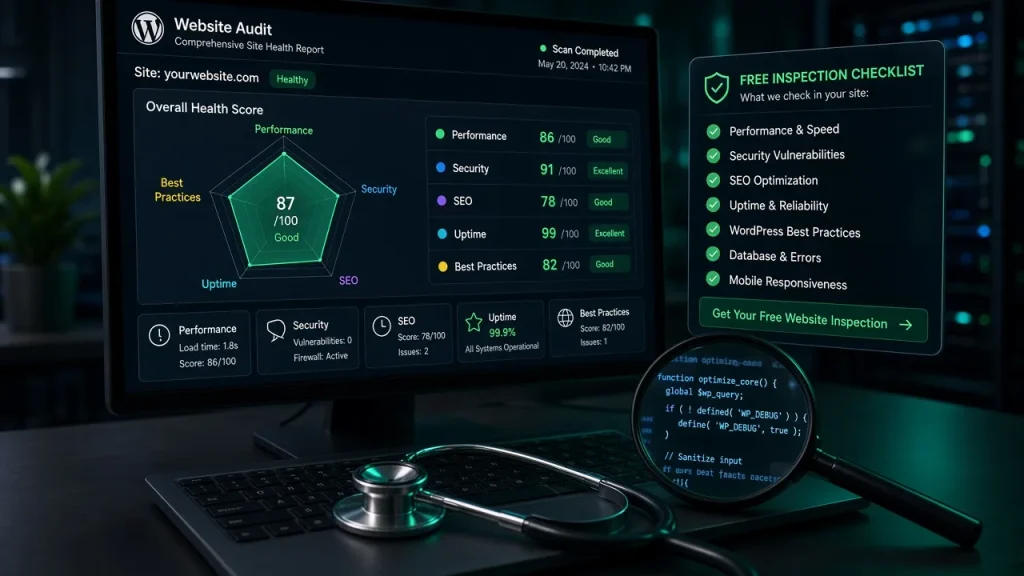
The post-incident hour is where the next incident is prevented: why did it fail, what monitors that failure mode now, what changes so it cannot recur. If the answer keeps being “abandoned plugin” or “undersized hosting,” the free audit turns those patterns into a plan.
Define the failure message (white page, 503, database error, timeout) and check from an outside network — the message routes you to the right playbook and rules out your own cache. Fix forward when the log identifies a recent, specific cause. Restore when the cause is unknown, ambiguous, or security-related — and accept the data loss since the backup point. Changes destroy evidence: once plugins are shuffled, the log no longer reflects the original failure. Twenty lines of log tail is the most valuable artifact in any outage. Check the hosting panel and status page, and test whether another site on the same account loads. Panel unreachable or sibling sites down = provider incident; open a ticket.What should I do first when my WordPress site is down?
Should I restore from backup or fix forward?
Why read the error log before changing anything?
How do I tell a hosting outage from a site problem?