You installed SSL, the site loads over https — and the browser still prints “Not secure” or a broken padlock. That is mixed content: the page is https, but some resource inside it (image, script, font, iframe) is still fetched over http, and browsers flag the whole page for it. The fix is mechanical once you find every straggler.
Step 1: Find the offenders
- Browser console (F12 → Console): every mixed-content item is listed with its exact URL. Reload and copy the list.
- View source search: Ctrl+U, search for
http://yourdomain— the classic hiding places are old post content, widget HTML, and hardcoded theme assets. - Database-wide check (WP-CLI):
wp db search "http://yourdomain.com" --all-tables --allow-root— shows every table row still holding http references.
Step 2: Fix the URLs properly
The database references need search-replace — serialized-safe (theme and plugin options are often stored in serialized PHP, and a naive SQL replace corrupts them):
wp search-replace "http://yourdomain.com" "https://yourdomain.com" --all-tables --allow-root
WP-CLI’s search-replace handles serialization. Doing the same with raw SQL UPDATE statements is how widgets and theme options silently break.
Step 3: The stragglers that survive search-replace
- Hardcoded theme files: header/footer templates with literal
http://links to assets. Fix in the theme (or child theme), not the database. - External resources: fonts, maps, or scripts loaded from third parties over http — update the embed URL to https or remove it.
- Page-builder caches: some builders cache generated CSS with absolute URLs — clear their cache after the replace.
- The page cache itself: purge it — cached https pages containing http references will keep warning visitors long after the fix (the cache layer again).
Step 4: Enforce and verify
- Force https at the server level (panel’s “force HTTPS” toggle or the canonical redirect) so stray http requests upgrade automatically.
- Verify: reload with the console open — zero mixed-content lines. Check the login page and a checkout page too; they are the ones with legal exposure.
- Watch the padlock across key templates — browsers only warn on the pages that actually load offenders.
Why this matters beyond the padlock
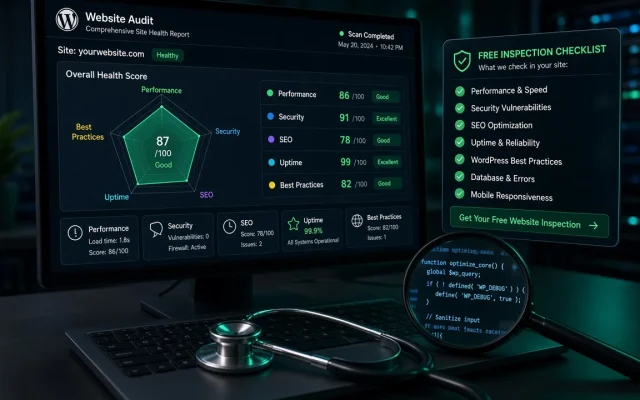
Mixed content on checkout or lead pages kills trust precisely where conversion happens — the pattern in the conversion checklist. And form submissions from flagged pages can be blocked outright by the browser. The free audit scans for mixed-content references across your key pages.
Mixed content: the page loads over https but references images, scripts, or fonts over http. The browser console lists each offending URL — fix them with a serialized-safe search-replace. Not with raw SQL — theme and plugin options are stored serialized, and naive replaces corrupt them. WP-CLI's wp search-replace handles serialization safely. Stragglers: hardcoded theme files, third-party http embeds, builder caches, and the page cache itself. Purge everything and check the console per template. Browsers label flagged pages 'Not secure' and can block form submissions — directly damaging lead and checkout conversion. Search engines also treat it as a quality signal.Why does my site say 'Not secure' with SSL installed?
Can I just replace http:// with https:// in the database?
Why do mixed content warnings persist after fixing URLs?
Does mixed content affect SEO or conversions?