Plugin conflicts rarely announce themselves politely. A form stops sending, checkout styles break, or the admin whitescreens after an update. The instinct — deactivate everything, re-enable one by one — works but is slow and disruptive. Here is the method we use on client sites that finds the culprit in minutes.
Before you start: make sure you can access your site two ways — wp-admin and your host’s file manager (or SFTP). Take a full backup now, including the database; conflict testing means activating and deactivating plugins on the live site if you have no staging, and a backup turns any mistake into a two-minute undo. Note your current PHP version under Tools → Site Health, because some ‘conflicts’ are actually PHP incompatibilities. Set aside 30 uninterrupted minutes; half-done testing tells you nothing.
Step 1: Read the actual error before touching anything
Enable WP_DEBUG and WP_DEBUG_LOG in wp-config.php:
define( 'WP_DEBUG', true );
define( 'WP_DEBUG_LOG', true );
define( 'WP_DEBUG_DISPLAY', false );
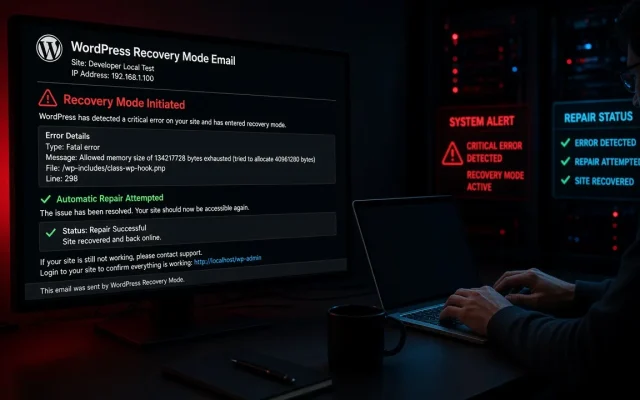
Reproduce the problem once, then read wp-content/debug.log. In most conflicts you will see a PHP Fatal error: Uncaught Error: Call to undefined function or a class redeclaration naming a file inside a plugin. That line names the breaking plugin directly — you can skip to Step 4.
Step 2: Bisect, do not brute-force
If the log does not name the plugin, bisect the list. Deactivate half your plugins at once, test. Problem gone? The culprit is in that half; re-enable half of that half. Four tests localize one plugin from a list of 32. This is the fastest manual method and safe on a staging copy.
Never bisect on production. Deactivating plugins can drop tables, purge data or break checkout mid-test. Clone the site first — our migration service builds staging copies exactly for this.
Step 3: Identify the second half of the pair
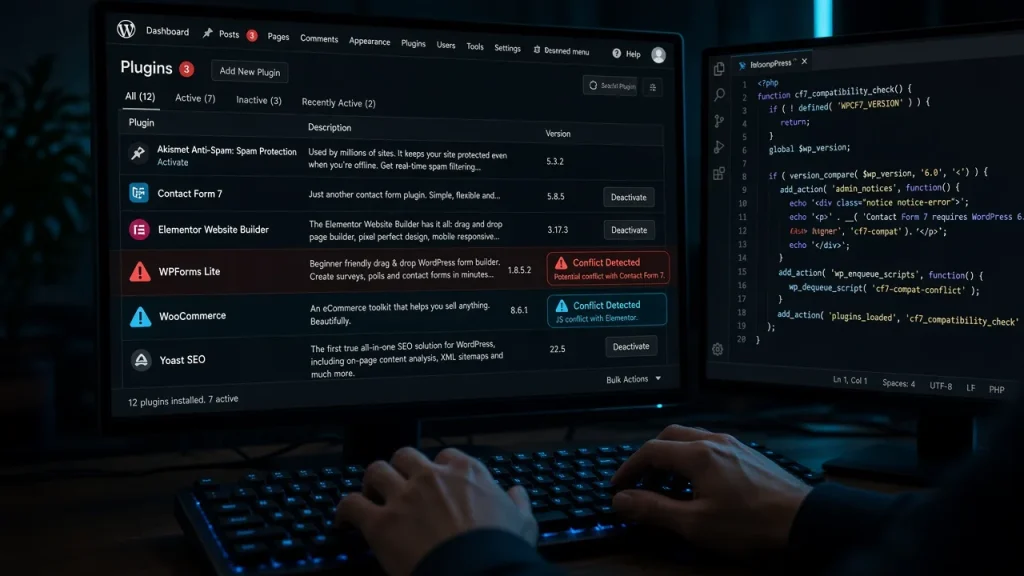
A “plugin conflict” is usually two plugins (or plugin + theme) claiming the same hook. Once you have plugin A, find its partner: re-enable plugins one at a time with A active until the breakage returns. The one that breaks it is plugin B.
Step 4: Fix without losing functionality
You now have three options, in order of preference:
- Update both plugins. Many conflicts are already fixed upstream.
- Remove the overlap. Two plugins doing the same job (two SEO plugins, two cache layers) — retire the weaker one. This is the correct fix surprisingly often.
- Unhook the collision. A small mu-plugin that removes the duplicate action/filter keeps both plugins otherwise functional:
add_action( 'plugins_loaded', function () {
    remove_action( 'wp_enqueue_scripts', 'offending_plugin_enqueue', 10 );
}, 20 );
Step 5: Prevent the next one
- Update plugins on a staging copy first — untested updates are the #1 conflict source
- Keep a plugin inventory; every active plugin must justify itself quarterly
- Prefer plugins with active releases in the last 6 months
- Log errors continuously in production (
WP_DEBUG_LOGwithWP_DEBUG_DISPLAYoff is safe)
If you would rather hand this to specialists: our team diagnoses and resolves plugin conflicts daily — start with the free audit and we will tell you exactly which pair is fighting.
Frequently asked
Yes — the Health Check & Troubleshooting plugin lets you disable plugins for your session only while visitors see the normal site. It is a great compromise for live-site diagnosis, though still test checkout flows carefully. The update usually did not break anything itself — it exposed an assumption the other plugin made (a function that used to exist, a hook priority). Reading the update changelog for both plugins often names the changed function.Can Health Check troubleshoot mode help?
Why did the conflict appear after I updated one plugin?