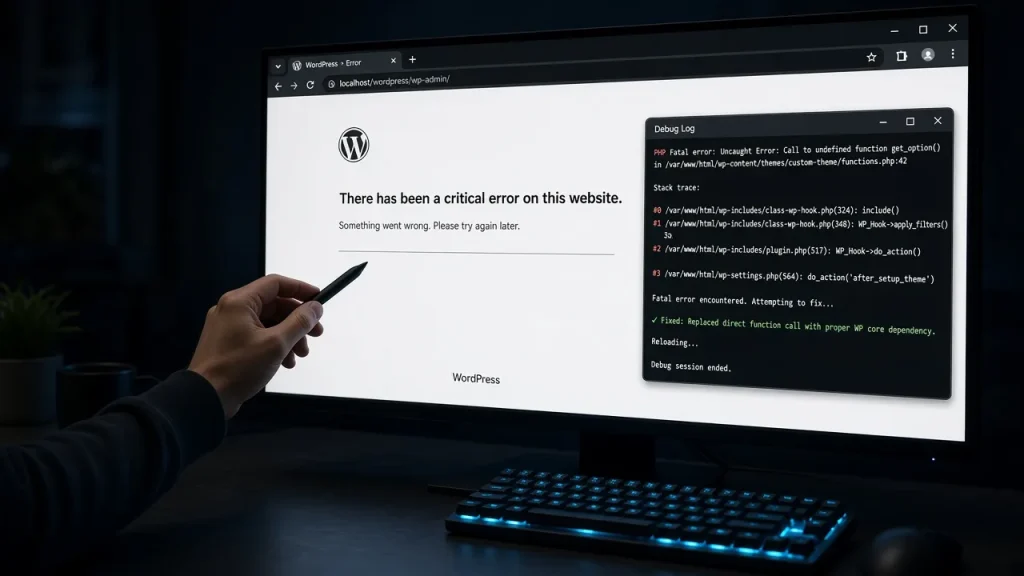
A blank white page is scary precisely because it gives you nothing to work with — no button, no error, just nothing. Take a breath: in the large majority of cases the fix is a single plugin or theme, and nothing is permanently lost. This walkthrough is written for site owners without developer tooling, and it favors the safest step at every branch.
First: confirm the scope
Three quick checks that shape everything after:
- Is the admin (wp-admin) working? If yes, your recovery options multiply — you may not need FTP at all.
- Is it site-wide or one page? One white page often means that page’s content or a shortcode; site-wide means a plugin/theme/core failure.
- What changed in the last 48 hours? An update, a new plugin, an edit to a file? That answer is usually the culprit and the recovery is to undo it.
If wp-admin works: the gentle fixes
- Clear your caching plugin’s cache and any CDN cache. A cached error page outlives its cause — this alone fixes a surprising number of “white pages” that are actually cached earlier failures.
- Deactivate the most recently installed/updated plugin. If the white page disappears, you have your answer; check that plugin’s changelog or support forum before re-activating.
- Switch themes briefly (Appearance → Themes → activate a default theme). If the site returns, the theme is the problem — usually a recent customization or update.
If wp-admin is also white: the safe file-level fix
You need FTP/SFTP access (your hosting panel’s file manager works too). Two moves, in order of safety:
- Rename the plugins folder: in
wp-content, renamepluginstoplugins-off. This deactivates every plugin at once — it does not delete anything. Reload the site. Working? Rename back topluginsand deactivate plugins one by one from the now-working admin to find the culprit. The systematic version of this is the halving method. - Rename the active theme’s folder (in
wp-content/themes). WordPress falls back to a default theme if one is installed. If the site returns, your theme is the culprit.
Find out what actually happened (5 minutes, worth doing)
Even after recovery, know the cause so it does not repeat. Edit wp-config.php and add above the “stop editing” line:
define( 'WP_DEBUG', true );
define( 'WP_DEBUG_LOG', true );
define( 'WP_DEBUG_DISPLAY', false );
Reload the (formerly white) page once, then open wp-content/debug.log. The last lines name the file and error — the vocabulary is decoded in the error-log reading guide. Turn the constants back off after reading; leave WP_DEBUG_LOG on if you want a record for future incidents.
The two causes behind nearly every white screen
- An interrupted or incompatible update. Plugin updated, PHP version mismatch, half-written files. Fix: update the plugin cleanly or reinstall it from scratch.
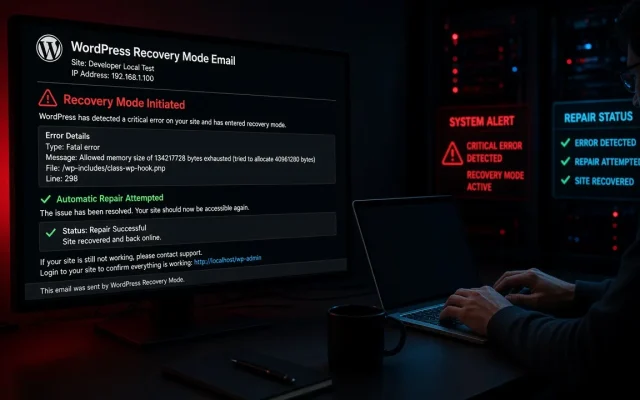
- A memory ceiling.
Allowed memory size exhaustedin the log — the fix and the hunt for the consumer are covered in the memory guide.
When to stop and get help
Stop DIY if: the white page appeared without any changes you made; renaming folders does not bring the site back; or the debug log shows errors in files you did not create (possible compromise — security response differs from bug fixing). Grab the log’s last 20 lines and hand them to support — that single artifact turns hours of guessing into a directed fix. The free audit also flags the abandoned plugins that cause most repeat failures before they fail.
If wp-admin works: clear caches and deactivate the most recently changed plugin. If not: rename the wp-content/plugins folder via your hosting file manager — that safely deactivates all plugins without deleting anything. No — plugin settings live in the database, untouched by renaming folders. Rename back to restore everything, then deactivate suspects individually to isolate the culprit. The failure is in front-end rendering: usually a theme customization, a broken shortcode, or a plugin that only loads on the public site. Switch themes first, then check recently changed plugins. Add WP_DEBUG and WP_DEBUG_LOG constants to wp-config.php, reload the page once, and read wp-content/debug.log — the last lines name the failing file and reason. Yes — page caches happily store error responses. After any recovery, purge your cache plugin and CDN, then test in a private browsing window.How do I fix a white screen on WordPress without coding?
Will renaming the plugins folder lose my settings?
Why is my site white but wp-admin works?
How do I see the error behind the white page?
Can a cached white page persist after the real fix?