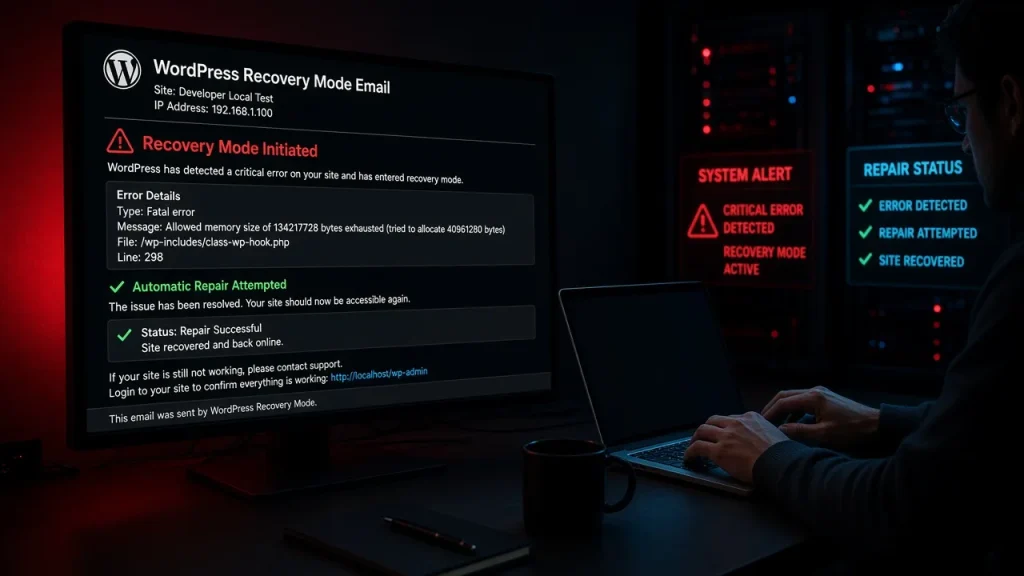
“Fatal error: Allowed memory size of 134217728 bytes exhausted” means PHP hit 128 MB while generating the page. The instinct — raise the limit — is sometimes right, and often wrong: if something consumes 300 MB on a page load, raising the ceiling just moves the crash. Here is how to do both correctly.
Raising the limit, the right way
- wp-config.php:
define( 'WP_MEMORY_LIMIT', '256M' );(front end) anddefine( 'WP_MAX_MEMORY_LIMIT', '512M' );(admin). - Know the override chain: the server’s
memory_limitin php.ini beats wp-config if lower — on managed hosts you may need the hosting panel’s PHP settings page. - Sensible values: 256M front / 512M admin covers nearly every real site. 1G+ limits mask leaks rather than fix them.
Finding what eats the memory
- The log line names the file where exhaustion happened — usually the victim, not the eater. A media library page dying there suggests the culprit runs on every request.
- Test with plugins halved: memory leaks from plugins (import jobs, backup routines, image optimizers mid-batch) respond to the halving method like any other symptom.
- Check autoloaded options: a multi-megabyte autoloaded option loads into memory on every request — we found a 2.4 MB one costing measurable RAM sitewide, described in the cleanup test. Measure with
wp db query "SELECT option_name, LENGTH(option_value) sz FROM wp_options WHERE autoload='yes' ORDER BY sz DESC LIMIT 10" --allow-root. - Time-correlate: does it die during backups (backup plugin mid-transfer), imports, or bulk image optimization? Then it is a batch job, not a page — schedule batches smaller.
The honest numbers
A well-built WordPress page request runs 40–80 MB. 128 MB default fails only on bloated stacks or legitimate heavy jobs (image processing, importers). If a normal page needs 200 MB+, something is wrong and the limit is a band-aid — the asset audit and free audit identify the usual hogs.
Define WP_MEMORY_LIMIT 256M in wp-config, verify the server's memory_limit allows it, then find what consumes the memory — the error line names the victim file, not the culprit. 256M for front end, 512M for admin covers nearly all sites. Limits above 1G usually mask a memory leak rather than solve one. Commonly: autoloaded options loaded every request, backup/import plugins mid-batch, or plugin stacks with redundant libraries. Audit autoloaded data first — it affects every page. No — the limit is a ceiling, not an allocation. Pages use what they use. The danger is only that bigger ceilings let leaks run longer before failing.How do I fix 'Allowed memory size exhausted'?
What is a good PHP memory limit for WordPress?
Why does my site need so much memory?
Does raising the memory limit slow my site?