Half of WordPress debugging is guessing who owns a behavior. Query Monitor ends the guessing: it shows every database query, hook callback, AJAX request, and outbound HTTP call — with timings and, critically, the plugin or theme that caused each. We install it on every diagnostic engagement; here is the setup and the four panels that do most of the work.
Setup, with the production caveat
Install Query Monitor from WordPress.org — no configuration needed. Two settings for live sites:
- Restrict visibility: by default only administrators see the admin-bar panel — that is already safe for production. Optionally set an authentication cookie to view without admin login.
- It adds overhead while active — fine for diagnostics, uninstall when the investigation ends. Do not leave it collecting data on busy stores.
The four panels we actually use
- Queries by Component: the money panel. Sort by time, read the component column — “the slow query belongs to plugin X” turns debates into facts. This finds the same class of problems as our database audit, live.
- HTTP API Calls: every outbound request with duration and caller. This is where cURL error 28 mysteries end: the plugin blocking page loads on a hung external API names itself.
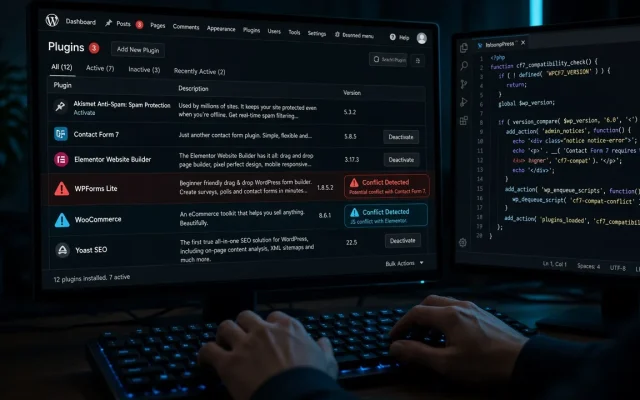
- Hooks & Actions: who is registered on which hook, in what order. When two plugins fight over
the_content(see the conflict method), this panel shows both contenders. - AJAX & REST: server-side view of the requests analyzed in the admin-ajax guide — the failing action mapped to its registering plugin.
A real reading
On a recent audit: admin pages took 4+ seconds. Query Monitor, Queries panel: 2,900ms of queries from one plugin’s dashboard widgets — dozens of uncached SELECTs per admin load. The fix (disable its widgets) took one minute; finding it without Query Monitor would have been an afternoon of deactivation roulette.
What it is not
Query Monitor diagnoses the server side only — front-end weight (the script audit‘s domain) still needs browser coverage tools. It pairs with WP_DEBUG rather than replacing it: the log records fatals, Query Monitor explains slowness.
Yes — its panels show only to administrators by default. It adds some overhead while active, so uninstall it when the investigation finishes rather than leaving it running. It backtraces every query and hook callback to the file that triggered it, then maps the file to its component (plugin/theme/core) — the Panels group results by that owner. Queries by Component (slow queries owned by plugins), HTTP API Calls (outbound request hangs), Hooks & Actions (conflict contenders), and AJAX/REST (failing handlers by plugin). For logged-in diagnostics yes — caching usually bypasses admins. To inspect what visitors experience, compare a cached and uncached response separately; Query Monitor sees the uncached side.Is Query Monitor safe on live sites?
How does Query Monitor identify which plugin made a query?
What are the most useful Query Monitor panels?
Does Query Monitor work with caching plugins?