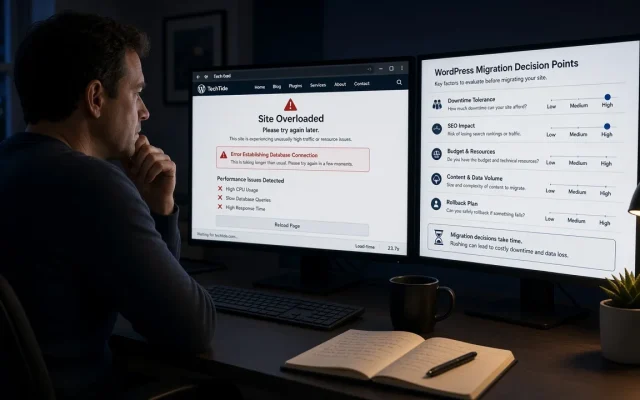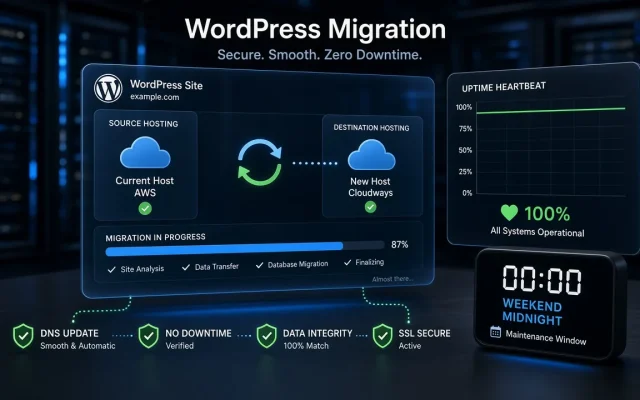
Every migration guide tells you to test before you go live. Almost none tell you what to do when you skip that advice, ship it anyway, and discover at 9 AM that the site is broken. That is what a rollback plan is for, and it has to exist before the migration, not during the fire.
I learned this the expensive way. A client migration went fine technically — the site loaded, WooCommerce worked — but two payment plugins silently lost their license activation on the new server, and checkout started failing intermittently. Because we had a rollback plan, we were back on the old hosting in under twenty minutes while we debugged. Without one, we would have been debugging in public.
The non-negotiable: keep the old site alive for 14 days
The single most important rollback rule is embarrassingly simple: do not cancel the old hosting account for two weeks after the move. Not seven days. Fourteen. Search engines take longer than that to settle, plugin licenses take time to re-verify, and edge cases (the invoice plugin you forgot you had) surface in the first days.
While the old account lives, your rollback has three layers, in the order I check them:
- DNS rollback. If you lowered the TTL to 300 seconds before the move (you did, right?), flipping the A record back restores the old site for most visitors within minutes. This is why the site migration checklist puts TTL reduction at the top.
- Database point-in-time restore. Orders and form submissions created on the new site during the broken window are the hard part. Export them before reverting.
- Full file restore on old hosting. Only if DNS alone is not enough.
The rollback decision matrix
Not every problem deserves a rollback. Reverting costs you orders captured on the new platform, so the question is: can this be fixed faster than reverting?
- Broken styling or images — fix forward. Reverting over cosmetic issues wastes your clean state.
- Checkout or login broken — fix forward if you can reproduce and see the cause within 30 minutes; otherwise roll back. Live revenue beats pride.
- Intermittent failures — roll back first, debug on staging. Intermittent issues on live traffic are the worst possible debugging environment.
- Search visibility collapsed a week later — do not roll back reflexively. Check the post-migration SEO checklist first; most “SEO loss” in week one is re-crawling noise.
Write the plan as a runbook, not a paragraph
A rollback plan that lives in your head is not a plan. Mine is a one-page runbook with five fields:
- Old DNS records and where they are managed, with current TTL
- Old hosting credentials and the exact account still active until [date]
- Latest pre-migration backup location (files AND database, separately testable)
- The one command or one click that restores the database
- The phone number of the person who can approve the decision at 2 AM
If any of those five fields is blank, the migration is not ready to ship. This is the same discipline I apply when deciding between a hosting migration and a rebuild — a rebuild needs an even stricter rollback story because there is no “old site” to fall back to, only backups.
Practice the rollback once, on staging
Rehearse it. On staging, run the restore: database import, DNS simulation, plugin license re-activation. Fifteen minutes of practice surfaces the gotchas — like discovering your backup plugin restores files but not the wp-config.php you customized. If you are moving toward staging-first workflows anyway, my staging to production checklist pairs with this runbook nicely.
After you roll back
A rollback is not a failure — it is the plan working. Post-mortem it: what was the trigger, how long did detection take, how long did recovery take? Then fix forward on staging and re-attempt the migration with the gap closed. Sites that migrate calmly are the ones whose teams treat rollback as a normal tool, not an admission of defeat. And if you have not shipped anything yet, start from the multisite guide or the standard checklist so the first attempt is the one that sticks.
How long should I keep the old WordPress hosting account active after migrating?
Two weeks minimum. It costs little, and it is the only true fallback if the new environment shows problems that take days to surface, like license deactivations or cron failures.
When is rolling back a migration the wrong move?
When the problem is cosmetic or fixable within about 30 minutes. Reverting throws away any orders or submissions created on the new site, so reserve it for revenue-critical failures or issues you cannot diagnose on live traffic.
What happens to orders placed during a broken migration window?
Export them from the new database before reverting, then re-import manually into the old site. This is the messiest part of a rollback, which is another reason to catch checkout failures fast.
Do I need a rollback plan if I tested everything on staging?
Yes. Staging never replicates live traffic, real payment webhooks, or production DNS behavior. The plan exists precisely for what testing cannot catch.
How fast can a DNS-based rollback actually be?
With a 300-second TTL set before the migration, most visitors see the old site again within 5 to 15 minutes once you flip the record back. Cached resolvers are the wildcard, which is why the fix is preventative TTL reduction.