Moving a WordPress site is easy to start and easy to ruin. The migration itself takes an hour; the difference between a clean move and a week of “things are subtly wrong” is the checklist below — the one our team follows for every client migration, refined by every move that taught us something.
Before the move (the 80% of success)
- Full backup, tested: files + database, and prove the backup restores — onto the new server, ideally. An untested backup is a wish.
- Inventory what runs: cron jobs, external API integrations (payment webhooks, license servers, mail providers), staging URLs in plugins. Anything “pointing somewhere” is something to re-point.
- Freeze changes: no content edits or plugin updates on the old site from the final export until cutover, or you will migrate stale data.
- Lower DNS TTL to 300 a day before — the cutover then propagates in minutes instead of 48 hours.
The move
- Copy files and database to the new server (rsync/archive +
wp db export/import --allow-root, or a migration plugin for smaller sites). - Search-replace URLs — serialized-safe:
wp search-replace "https://old.com" "https://new.com" --all-tables --allow-root. Raw SQL replaces corrupt serialized options (the mechanism in the mixed-content guide). - Match the environment: PHP version, extensions, and HTTPS must mirror the old server — mismatched PHP is the top cause of “it worked there.”
- Test on the new server before DNS moves: via a temporary hosts-file entry or the panel’s preview URL. Click through: home, posts, checkout, forms, admin login.
Cutover
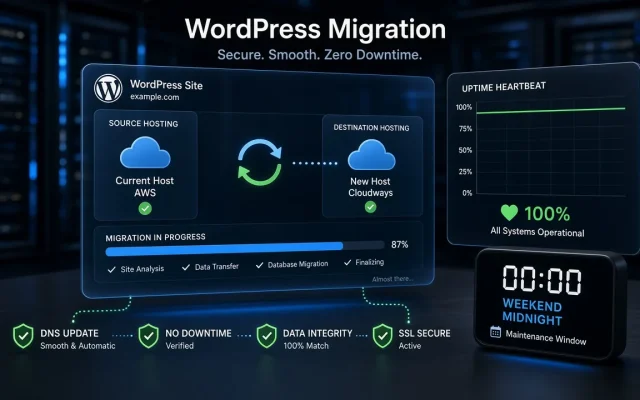
- Point DNS to the new server; with TTL lowered, propagation is minutes.
- Keep the old site running (frozen) for a week — it catches stale-DNS visitors and is your instant rollback path.
- Set up SSL before cutover, not after — a certificate gap at cutover is a self-inflicted outage.
The ten things most moves forget
- wp-cron: verify schedules actually run (WP Crontrol); visitor-triggered cron dies quietly after moves.
- Email: SMTP credentials and SPF/DNS records reference providers by IP/domain — re-verify (the checklist in the mail guide).
- Webhooks: payment providers (Stripe/PayPal) post to fixed URLs — update and test a real transaction.
- Hardcoded asset URLs in widgets, theme options, and page-builder caches — purge those caches.
- Mixed content: re-check after the move; certificates and configs differ per server.
- Analytics: the property keeps working, but verify tracking fires — silent gaps cost months of data.
- Search Console: no action needed for domain-stable moves, but watch coverage for a week.
- Caches and CDNs: purge everything; old-IP caches can serve stale pages to early visitors.
- File permissions: rsync with wrong ownership breaks uploads silently — test a media upload.
- Backups on the new server: configure the backup plugin from day one — migrations are exactly when you need it.
Post-move week
Monitor error logs daily, verify form submissions arrive, confirm cron schedules, and compare analytics against pre-move baselines. When the numbers match for seven days, retire the old server. The migration service page describes how we run this for clients.
Clone to the new server, search-replace URLs serialized-safely, test via hosts-file preview, lower DNS TTL a day ahead, then cut over. Keep the old server frozen for a week as rollback. SMTP credentials, SPF records, or provider whitelists reference the old server or IP. Re-verify SMTP settings and DNS records, then send a test to a Gmail inbox. Usually environment mismatch: different PHP version, missing extensions, or wrong file permissions. Match the old environment first, then debug specifics from the error log. WP-CLI (db export/import plus search-replace) is more reliable for large sites and gives you exact control. Migration plugins suit smaller sites without SSH access.How do I migrate a WordPress site without downtime?
Why do emails stop after a WordPress migration?
Why is my WordPress site broken after moving hosts?
Should I use a migration plugin or WP-CLI?