An auto-update ships a regression and your checkout, form, or layout breaks within days. You need the previous version back — fast, minimally, without touching what still works. All the routes, ranked by how quickly they get you there.
1. WP-CLI version install (fastest, needs SSH)
wp plugin install elementor --version=3.19.2 --force --allow-rootwp plugin install elementor --version=3.19.2 --force --allow-root. One command, precise version, done in seconds. This is our default. Find the last-good version from the plugin’s changelog (WordPress.org plugin pages list every release).
2. Rollback plugins (admin-only access)
WP Rollback adds a “Rollback” link to installed plugins, offering previous versions from WordPress.org. No SSH needed, works in the dashboard. Slower than CLI (browser downloads), but the only clean option when all you have is admin. Limitation: works for WordPress.org plugins, not premium ones unless they expose versions themselves.
3. Manual download + replace (works for premium plugins)
Download the previous version from your premium plugin’s account area, then replace via FTP: deactivate and delete the plugin in admin (data survives — the conflict guide covers what deletion preserves), upload the old folder to wp-content/plugins/, re-activate.
4. Full restore from backup (when the blast radius is unknown)
When the update touched the database in ways reverting code does not undo (migrations, new tables), a restore to pre-update state is the honest fix — assuming the backup was tested. Last resort: it loses everything since the backup point.
Before rolling back: is it actually the update?
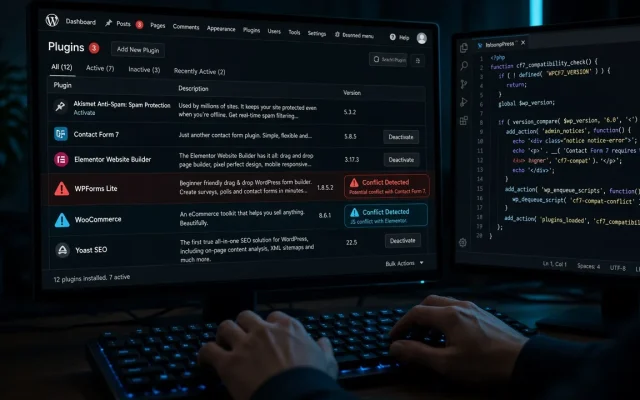
Sixty seconds of conflict triage first: check the browser console for the failing script, and confirm timing (breakage within days of the update). Rolling back the wrong plugin wastes the golden hour. And once stable, report the regression to the developer — with the version numbers, the symptom, and the URL — so the fixed release arrives before you are forced to update again.
With SSH: wp plugin install plugin-name --version=X.Y --force. Without: the WP Rollback plugin offers previous WordPress.org versions in the dashboard. Premium plugins: download the old release from your account. No — settings live in the database, not the code folder. Version swap only replaces files. Exceptions are plugins whose updates ran database migrations; those may need a backup restore. New versions ship regressions, or depend on server/library versions you lack. Check the plugin changelog and your PHP version; roll back while reporting the regression to the developer. Selectively: auto-updates on well-tested plugins, manual for the critical ones (checkout, membership). A tested backup plus staging gives the safer middle ground.How do I roll back a WordPress plugin update?
Does rolling back a plugin lose its settings?
Why did a plugin update break my site?
Should I disable auto-updates to prevent this?