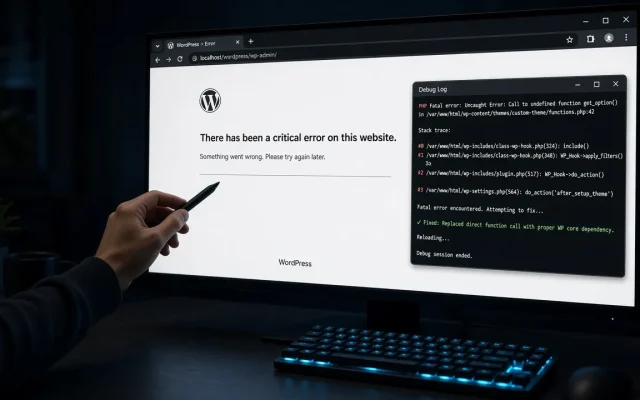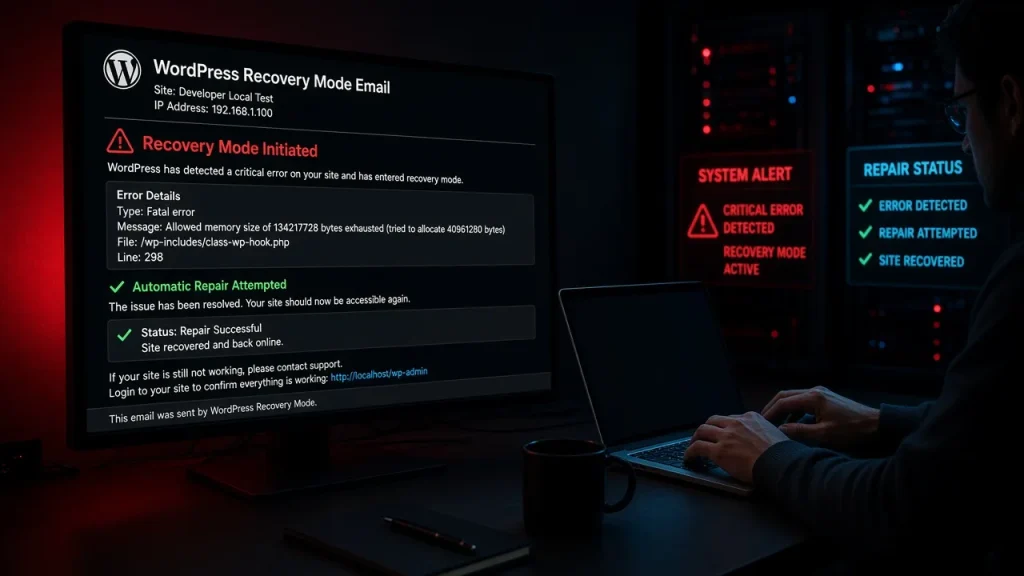
Since WordPress 5.2, fatal errors on the front end show “This site is experiencing technical difficulties” — and behind the scenes, WordPress emails the admin a link to recovery mode. Most site owners never find that email, which is a shame: it contains the exact error that the white-screen era hid. Here is the full workflow, from finding the email to fixing per error type.
Step 1: Find the recovery-mode email
Sent to the admin email in Settings → General — one hour before the link expires. If email never arrives (extremely common — WordPress mail deliverability is its own saga, covered in the email fix guide), skip to step 3 and read the log directly. If the email is there, the link logs you into a backend session where the fatal error and its file/line are displayed at the top of every admin screen.
Step 2: Recovery mode, what it gives you
- The backend loads with the broken plugin/theme paused — the site is administrable while broken.
- Front end: logged-in users in recovery mode see the error details instead of the polite screen.
- Fix the culprit (update, revert your edit, deactivate), click Exit Recovery Mode, test.
Step 3: No email? Read the log
Enable WP_DEBUG_LOG in wp-config.php, reload the failing page, read wp-content/debug.log. The line format: PHP Fatal error: Uncaught Error: Call to undefined function xyz() in /path/plugins/that-plugin/file.php on line 42. That single line answers the only question that matters — which plugin or theme. The log-reading guide covers the message taxonomy in detail.
Fixes by error type
| Error says | Usual cause | Fix |
|---|---|---|
| Call to undefined function / class | Plugin expects another (missing/outdated) plugin, or partial update | Update the named plugin + its companion; deactivate if update fails |
| Cannot redeclare function | Same function loaded twice (two plugins bundling the same library) | Isolate with the halving method, remove one copy |
| Memory exhausted | Runaway job or bloated install | Raise WP_MEMORY_LIMIT; find the eater |
| Failed opening required file | Broken/partial plugin install | Delete the plugin folder via FTP, reinstall clean |
| Maximum execution time exceeded | Slow query or external API call hanging | Identify the hanging call in the log; timeout settings |
WP-CLI shortcuts
wp plugin list --status=active --allow-root— see the rosterwp plugin deactivate broken-plugin --allow-root— the fix in one commandwp core verify-checksums --allow-root— rule out corrupted core
After the fix
Purge the page cache (a cached error page outlives its error), reload the front end logged-out, and check the admin for update notices. The update that caused this is probably pending on five other plugins too. If errors keep recurring, the free audit flags the abandoned plugins that cause most repeat offenses.
A PHP fatal error occurred and WordPress's fatal-error handler caught it. WordPress emailed the admin a recovery-mode link containing the exact error — check that inbox first. Sent to the admin email (Settings → General) when a fatal error occurs. The link inside expires after one hour. If email delivery is broken, read wp-content/debug.log instead. Identify the culprit from the recovery email or debug log, then update, revert, or deactivate that plugin/theme. Purge the page cache afterward and test logged out. No — visitors get the generic screen. Only logged-in users with recovery mode see details. Enable WP_DEBUG_LOG to capture the error for yourself.What does 'experiencing technical difficulties' mean?
Where is the WordPress recovery mode email?
How do I fix a critical error in WordPress?
Can a visitor see the error details?