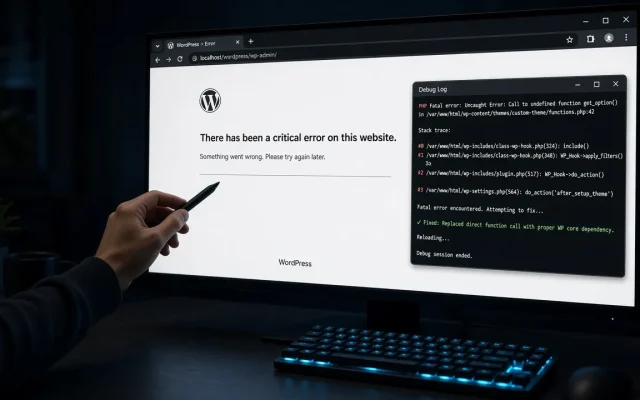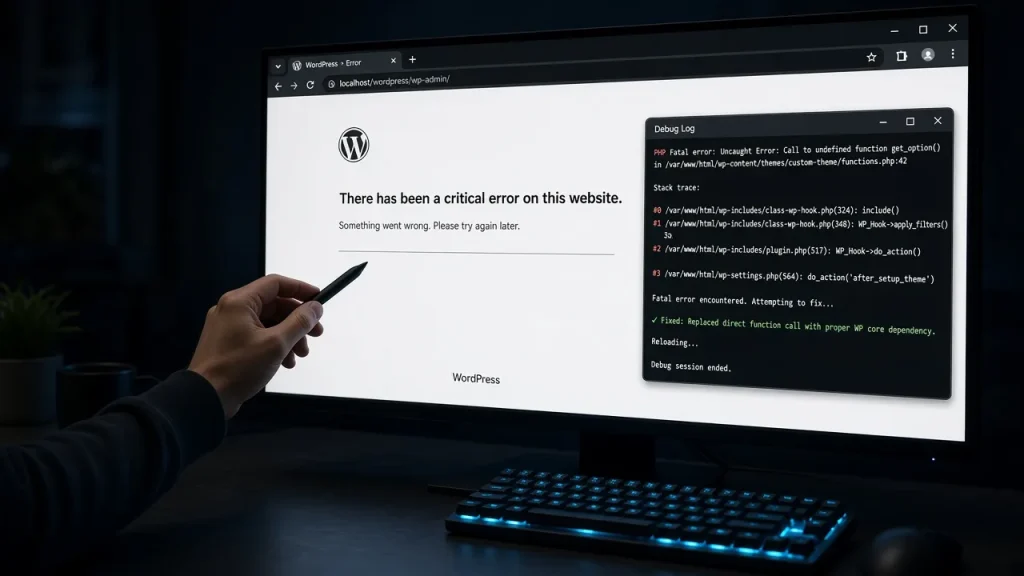
The white screen is dramatic but rarely mysterious: PHP threw a fatal error before any output. The blank page is hiding the error message, and the whole recovery is about revealing it, then removing its cause. Here is the order we follow on client emergencies — the same order, every time, because it works.
Step 0: See the error (5 minutes, solves half of all cases)
The fastest route to the actual error:
- Check the log that already exists: if WP_DEBUG_LOG is on, it is in
wp-content/debug.log. Otherwise check your hosting’s PHP error log (on many panels: site error log, or/var/log/php-fpm/). The error-reading guide decodes the messages you will find. - Turn on debug output temporarily in wp-config.php:
define( 'WP_DEBUG', true ); define( 'WP_DEBUG_LOG', true ); define( 'WP_DEBUG_DISPLAY', false );
— reload the white page once, then readwp-content/debug.log. Keep DISPLAY off on live sites: leaking paths and versions is worse than a white page. - The log line tells you the file, line, and error type.
Parse error/Fatal errorin a plugin → go to step 1. In the theme → step 2.Memory exhausted→ step 3.
Step 1: The plugin bypass
If FTP/SSH works, renaming wp-content/plugins to plugins-off deactivates everything at the filesystem level — the nuclear version of the halving method from the conflict diagnostic. Reload. If the site returns (with “plugin file missing” notices), rename back and deactivate plugins selectively, or use WP-CLI:
wp plugin list --status=active --allow-root— see what is activewp plugin deactivate suspicious-plugin --allow-root— surgicalwp plugin update --all --allow-root— often the fix for post-update WSODs
Step 2: The theme switch
Fatal errors in themes (functions.php edits are the classic cause) survive the plugin bypass. Rename the active theme’s folder — WordPress falls back to a default theme if one exists. WP-CLI equivalent: wp theme activate twentytwentyfive --allow-root. If the site returns, the error is in your theme; get it from the log line.
Step 3: Memory
Fatal error: Allowed memory size exhausted — raise WP_MEMORY_LIMIT in wp-config (256M is a sensible ceiling) and check what eats it. The usual suspects: a backup plugin running mid-transfer, an import job, or an autoloaded option monster — the diagnosis is in the database cleanup test.
Step 4: The sneaky ones
- Stale opcache: you fixed the file but PHP serves the old compiled version. Restart PHP-FPM or the panel’s PHP service.
- Cache serving the white page: purge the page cache — a cached WSOD keeps whiting even after the fix.
- Corrupted core files:
wp core verify-checksums --allow-rootfinds them;wp core download --skip-content --force --allow-rootreplaces them.
Prevention, for next time
Every WSOD we clean up traces to one of three things: an edit without a backup, an auto-update, or a resource limit hit under load. A tested backup plus a staging site turns a panic into a five-minute fix. If you are reading this mid-emergency and want hands off keyboard: our emergency support does exactly this sequence for clients.
PHP threw a fatal error before any HTML rendered. Enable WP_DEBUG_LOG in wp-config, reload once, and wp-content/debug.log will name the file and line responsible. Use FTP/SSH: rename wp-content/plugins to deactivate everything, or use WP-CLI (wp plugin deactivate). Check wp-content/debug.log to identify the failing file. No — it exposes paths and versions publicly. Enable WP_DEBUG_LOG (errors to file) and keep display off; read the log instead of the screen. With SSH access and an error log: 15–30 minutes in our experience — the log names the culprit, then it is one deactivation, one update, or one reverted edit. Yes — page caches happily cache a fatal-error response. Purge the page cache after any WSOD fix or the white page survives its own cure.Why is my WordPress page blank white?
How do I fix WSOD without admin access?
Should I enable WP_DEBUG_DISPLAY on a live site?
How long does a WSOD recovery take?
Can a cached white screen persist after I fix the error?