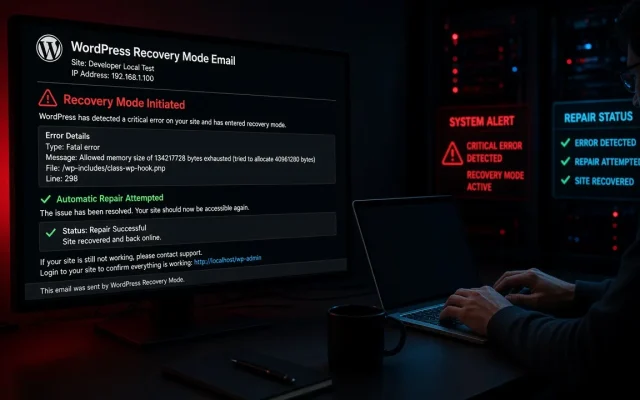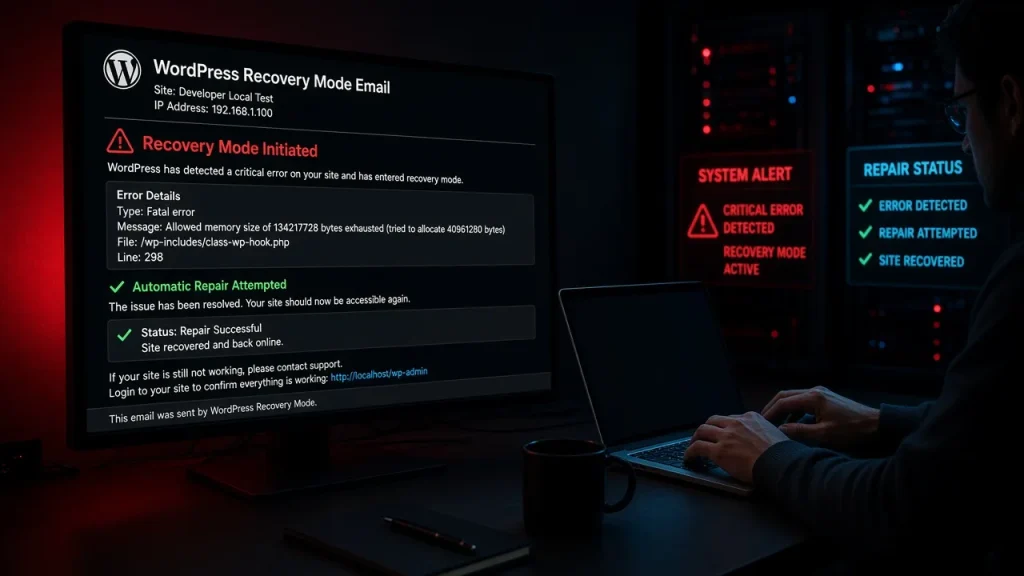
“There has been a critical error on this website” is WordPress’s built-in safety net: it caught a PHP fatal error, hid the details from visitors, and — crucially — emailed the admin a link with the culprit named. Most site owners panic and start deleting plugins. The recovery email makes that unnecessary.
Step 1: Find the recovery email
WordPress sent the message to the site admin email (check spam folders). The subject is “[…], your site is experiencing a technical issue”. It contains the exact error — plugin or theme name, file, line — and a one-click recovery mode link valid while the error persists.
Step 2: Use recovery mode
The link logs you into a special admin session where the broken extension is already paused. You can browse wp-admin normally, update or replace the offending plugin/theme, and exit recovery when done. Visitors saw the error page; recovery mode fixes it server-side without FTP.
Step 3: Fix the cause, not just the symptom
The email names the file that threw. Common patterns and their fixes:
| Error pattern | Meaning | Fix |
|---|---|---|
Call to undefined function X() in plugin A |
A depended on a function provided by plugin B or the theme | Update both; if not available, disable the dependent one |
Cannot redeclare class X |
Two plugins ship the same class/library | Retire the redundant plugin |
memory size exhausted |
Runaway memory use or undersized limit | Raise to 256M; profile if it recurs |
Undefined property after core update |
Extension not yet compatible with new core | Roll back extension to last known-good version |
No recovery email? Two fallbacks
- Check the server error log (hosting panel → error logs). The last fatal error names the file.
- Manual isolation: rename the plugins folder as described in our white screen guide — the same technique works here.
After it is fixed: close the loop
- Apply the same update on a staging copy first next time — this error is 90% “untested update”
- Verify backups exist and restore
- Keep
WP_DEBUG_LOGenabled so the next incident leaves a paper trail
Errors repeating? Recurring critical errors usually mean plugin-stack debt — too many overlapping extensions. See plugin conflict diagnosis, or let our team audit the stack for free: request your audit.
Frequently asked
No. The error means PHP stopped executing a page — the database is untouched. Fix the code issue and your content is exactly where you left it. The recovery email names it. Without the email, match the error timestamp against your update history — most hosts and plugin managers log versions with dates.Is my data lost when I see this error?
How do I know which plugin to roll back?